Module 4 — Transcriptomics & biological networks
Bioinformatik: metoder og anvendelse NPLB24004U · course workbook — all code runs in RStudio on ERDA
How this workbook works
Nothing on this page runs in the browser. Every code block is meant to be copied into RStudio on ERDA — the University’s own computers, used through your web browser, so there is nothing to install except Cytoscape in week 2. If you have not used ERDA before, do the appendix before the first class. All files live in one folder, ~/work/module4; the code downloads every dataset into it for you, so every block runs verbatim with no editing.
Two kinds of code blocks appear:
- plain code blocks are R — paste them into the RStudio console (or, better, collect them in a script as you go and run them from there);
- blocks marked TERMINAL are shell commands — paste them into RStudio’s Terminal tab, not the R console.
Some steps end with a Your turn question and a folded Answer — try it before you unfold.
All R code on this page uses base R only — no packages to install.
Everything saved under ~/work is kept between sessions. But an ERDA session is switched off after 2 hours of inactivity, and R’s memory goes with it: all variables are gone when you come back. That is why each session below starts with a setup block that re-creates everything it needs from the files in ~/work/module4. If you see Error: object 'expr' not found, scroll up to the session’s setup block and run it again — it is quick, because the files are already downloaded.
Besides the code, three kinds of boxes appear:
Files and setup — what to download, where it goes, and what to rerun after a break.
Work done on a database website (UniProt, Expression Atlas, ePlant, STRING …), not in RStudio.
Work done in the Cytoscape desktop program on your own computer.
All analyses use public Arabidopsis thaliana data. Session 1 downloads raw reads from the European Nucleotide Archive (BioProject PRJNA314076, the Klepikova et al. 2016 developmental atlas). Sessions 2–6 use the processed version of an Arabidopsis organ atlas from the EBI Expression Atlas (experiment E-MTAB-7978: 56 RNA-seq samples from 23 organs and tissues, TPM values), gene descriptions from TAIR10, and protein–protein interactions from BioGRID (release 5.0.250). Everything is downloaded straight from the source into your ERDA folder.
Schedule
Module 4 runs over two weeks in October 2026 (weeks 43–44), Tuesday and Thursday mornings plus Thursday afternoons — taught by Marek Mutwil (mutwil@plen.ku.dk). The Section column links to the part of this page that goes with each block.
| Date | Time | What happens | Slides / materials | Section |
|---|---|---|---|---|
| Week 43 Tue 20 Oct |
09:00–12:00 | Basic gene expression analysis | ||
| 09:00–09:50 | Lecture M4F1: Transcriptomics — background and theory | M4F1 - Transcriptomics Background and theory.pdf |
||
| 09:50–10:05 | Break | |||
| 10:05–10:20 | Lecture M4F2: Normalization metrics in RNA-seq | M4F2 - Normalization metrics in RNA-seq.pdf |
||
| 10:20–12:00 | Exercise M4Ø1: RStudio on ERDA, and estimating gene expression with kallisto | this workbook | §1 | |
| Thu 22 Oct | 09:00–12:00 | Exploratory data analysis | ||
| 09:00–10:15 | Lecture M4F3: Exploratory data analysis (EDA) and data preprocessing | |||
| 10:15–10:30 | Break | |||
| 10:30–12:00 | Exercise M4Ø2: EDA and preprocessing | this workbook | §2 | |
| 12:00–13:00 | Lunch | |||
| 13:00–16:00 | Basic transcriptomics analyses and online databases | |||
| 13:00–13:55 | Lecture M4F4: Basic transcriptomics analyses and online databases | |||
| 13:55–14:10 | Break | |||
| 14:10–15:00 | Exercise M4Ø3: Co-expression analysis | this workbook | §3 | |
| 15:00–15:15 | Break | |||
| 15:15–16:00 | Exercise M4Ø4: Transcriptomic databases | this workbook | §4 | |
| Week 44 Tue 27 Oct |
09:00–12:00 | Biological networks | ||
| 09:00–10:00 | Lecture M4F5: Biological networks | M4F5 - BiologicalNetworks.pdf |
||
| 10:00–12:00 | Exercise M4Ø5: Co-expression network analysis in Cytoscape (provisional) | this workbook · Cytoscape | §5 | |
| Thu 29 Oct | 09:00–12:00 | Mini-project | ||
| 09:00–09:15 | Lecture M4F6: Multi-omic network analysis of secondary cell wall biosynthesis | M4F6 - NetworkProject.pptxsecondary cell wall regulation.pdf |
§6 | |
| 09:30–12:00 | Mini-project, and finishing your presentation (provisional) | this workbook | §6 | |
| 12:00–13:00 | Lunch | |||
| 13:00–16:00 | Peer review and Q&A | |||
| 13:00–13:55 | Peer review of the mini-project presentations | §6.7 | ||
| 13:55–14:05 | Break | |||
| 14:05–16:00 | Q&A session (spørgetime) |
The time plan is tentative and may be adjusted during teaching; Absalon is the authority if anything changes. The week 44 exercises (M4Ø5 and the mini-project) are provisional — their content may still change before week 44.
Reading, to be done before the session it belongs to (all on Absalon):
- Tuesday, week 43 —
transcriptomic_databases_plants.pdf; TPM vs RPKM explained - Thursday, week 43 —
co-expression analysis.pdf,bulk atlas.pdf,cell atlas.pdf - Thursday, week 44 —
secondary cell wall regulation.pdf(background for the mini-project)
Foreløbigt skema (kan blive justeret under undervisningsdagene)
Underviser: Marek Mutwil (mutwil@plen.ku.dk)
Uge 43 – Genekspressionsanalyse: tirsdag 20. oktober og torsdag 22. oktober
Tirsdag, 20-10-2026
Litteratur: transcriptomic_databases_plants.pdf, TPM vs RPKM explained
09:00 – 12:00 Basic gene expression analysis
- 09:00 – 09:50 Forelæsning M4F1: Transcriptomics: Background and theory
- 09:50 – 10:05 Pause
- 10:05 – 10:20 Forelæsning M4F2: Normalization metrics in RNA-seq
- 10:20 – 12:00 Øvelse M4Ø1: RStudio on ERDA and estimating gene expression with kallisto
Torsdag, 22-10-2026
Litteratur: co-expression analysis.pdf, bulk atlas.pdf, cell atlas.pdf
09:00 – 12:00 Exploratory data analysis
- 09:00 – 10:15 Forelæsning M4F3: Exploratory Data Analysis (EDA) and Data Preprocessing
- 10:15 – 10:30 Pause
- 10:30 – 12:00 Øvelse M4Ø2: EDA and preprocessing
12:00 – 13:00 Frokostpause
13:00 – 16:00 Basic transcriptomics analyses and online databases
- 13:00 – 13:55 Forelæsning M4F4: Basic transcriptomics analyses and online databases
- 13:55 – 14:10 Pause
- 14:10 – 15:00 Øvelse M4Ø3: Co-expression analysis
- 15:00 – 15:15 Pause
- 15:15 – 16:00 Øvelse M4Ø4: Transcriptomic databases
Uge 44 – Biological networks: tirsdag 27. oktober og torsdag 29. oktober
Øvelserne i uge 44 er foreløbige og kan stadig blive ændret.
Tirsdag, 27-10-2026
09:00 – 12:00 Biological networks
- 09:00 – 10:00 Forelæsning M4F5: Biological networks
- 10:00 – 12:00 Øvelse M4Ø5: Co-expression network analysis in Cytoscape (foreløbig)
Torsdag, 29-10-2026
Litteratur: secondary cell wall regulation.pdf
09:00 – 12:00 Mini-projekt
- 09:00 – 09:15 Forelæsning M4F6: Multi-omic network analysis of secondary cell wall biosynthesis
- 09:30 – 12:00 Fortsættelse af mini-projekt og færdiggørelse af præsentation (foreløbig)
12:00 – 13:00 Frokostpause
13:00 – 16:00 Peer review og spørgetime
- 13:00 – 13:55 Peer review
- 13:55 – 14:05 Pause
- 14:05 – 16:00 Spørgetime
Session M4Ø1 — RStudio on ERDA, and estimating gene expression with kallisto
Tuesday 20-10-2026 · week 43
Today has two halves. First you learn just enough RStudio — the console, a script and the Terminal — to work through the module. Then you do what every RNA-seq project starts with: download raw sequencing reads and turn them into gene expression values with kallisto.
Start an RStudio session on ERDA (appendix) and make the module folder — paste this into the Console (once is enough; it does nothing if the folder exists):
dir.create("~/work/module4", showWarnings = FALSE)
setwd("~/work/module4")
setwd() (set working directory) makes ~/work/module4 the folder R reads from and writes to. Each session’s setup block starts with it.
1.1 RStudio basics: console and script
RStudio has four panes. The Console (bottom left) runs whatever you type, at once. A script (File → New File → R Script, top left) is a text file of code you keep: put the cursor on a line and press Ctrl + Enter (Mac: Cmd + Enter) to send that line — or a selection — to the console. Lines starting with # are comments: notes for humans, which R ignores.
Paste this into the console:
print("Hello from R!")
x <- 5
y <- 7
cat("Sum:", x + y, "\n")
x and y are variable names; 5 and 7 are their values; <- assigns the value to the name.
Your turn: open a new script and save it as ~/work/module4/M4_session1.R. Start it with a few comment lines: a title, one sentence on what you will learn this week, and three learning goals. Then add code that creates a variable my_name holding your first name and prints Hello, my name is ... — and run it from the script.
# Module 4 — Session 1
# This week I learn how to turn raw RNA-seq reads into expression values and analyse them.
# Goals: 1. run R and Linux commands on ERDA
#        2. estimate gene expression with kallisto
#        3. explore an expression matrix and find co-expressed genes

my_name <- "Andreas"
cat("Hello, my name is", my_name, "\n")
Keep a script like this for every session — it is your record of what you ran, and you can rerun all of it at once with Source.
Learning R programming is not a goal of this module — but you should be able to read and modify existing R code to run a transcriptomic analysis. That is exactly what the rest of the module asks of you.
1.2 Terminal basics: Linux commands
ERDA runs Linux. Click the Terminal tab, immediately right of Console, to get a Linux command line. Programs that are not R — such as kallisto — run here. Paste these one at a time:
cd ~/work/module4                              # 1. go to the module folder
pwd                                            # 2. print working directory: where am I?
ls                                             # 3. list the files here
mkdir myfolder                                 # 4. make a folder ...
ls                                             #    ... and check that it exists
echo "Hello from Linux" > myfolder/hello.txt   # 5. write text into a new file ...
cat myfolder/hello.txt                         #    ... and show its contents
The new folder and file also appear in RStudio’s Files pane (bottom right) — click the file to open it.
Your turn: (1) make a folder called testdir; (2) inside it, create a file note.txt containing the text This is my note; (3) list the files in testdir to confirm it worked.
mkdir testdir
echo "This is my note" > testdir/note.txt
ls testdir
cat testdir/note.txt
echo "..." > file writes the text into the file. (touch testdir/note.txt would also create the file — but empty, without the text.)
Useful terminal commands: cd dirname (enter a folder), cd .. (go up), ls -lh (list with sizes), mkdir (make a folder), pwd (where am I).
1.3 Install kallisto
Background: gene expression can be approximated by measuring how much mRNA a gene makes. RNA-seq does this by converting mRNA into cDNA (watch 8:10–10:10) and reading it with short-read sequencing. Counting how many reads come from each gene tells you how highly it is expressed relative to the other genes.
kallisto is the program that does the counting. It is a Linux program, not an R package, so it is installed and run in the Terminal. Paste this complete installation script:
set -euo pipefail

mkdir -p ~/work/module4/bin
cd ~/work/module4

install_tmp="$(mktemp -d)"
trap 'rm -rf "$install_tmp"' EXIT

curl -fL --retry 3 -o "$install_tmp/kallisto.tar.gz" \
  https://github.com/pachterlab/kallisto/releases/download/v0.46.1/kallisto_linux-v0.46.1.tar.gz

tar -xzf "$install_tmp/kallisto.tar.gz" -C "$install_tmp"
cp "$install_tmp/kallisto/kallisto" bin/kallisto
chmod u+x bin/kallisto

./bin/kallisto version
This downloads kallisto 0.46.1 from its official release, puts the program in ~/work/module4/bin/, and checks that it runs — the last line should print the version. chmod u+x gives your account permission to execute the file; no administrator rights are needed. (set -euo pipefail makes the script stop at the first error, and the trap line cleans up the temporary download folder.)
Because kallisto lives in the module folder, you always run it as ./bin/kallisto from ~/work/module4 — the ./ means “the program in this folder”. To see which commands and parameters it takes, run it without any:
cd ~/work/module4
./bin/kallisto
1.4 Download the Arabidopsis coding sequences
kallisto needs the sequences of all transcripts of your organism — here the coding sequences (CDS) of Arabidopsis thaliana — to build an index. The index lets kallisto match RNA-seq reads to transcripts in a very time- and memory-efficient way, which is what made it so popular.
cd ~/work/module4
# Coding sequences of the representative gene model of every Arabidopsis gene (TAIR10)
curl -fL --retry 5 -o TAIR10_cds.fa \
  "https://www.arabidopsis.org/api/download-files/download?filePath=Genes/TAIR10_genome_release/TAIR10_blastsets/TAIR10_cds_20110103_representative_gene_model_updated"

# Inspect the first lines, and count the sequences (every sequence starts with ">")
head -n 2 TAIR10_cds.fa
grep -c ">" TAIR10_cds.fa
You should see a header line starting with >AT1G50920.1 followed by DNA, and 27,416 sequences.
kallisto does pseudoalignment: instead of aligning every read base by base, it looks up which transcripts each read could come from. For that it cuts the transcriptome into short words of length k (k-mers, by default k = 31) and builds a lookup table — for every k-mer, which transcripts contain it.
1.5 Build the kallisto index
kallisto index builds that lookup table. After -i you give the name of the index file to create, followed by the FASTA file to read:
cd ~/work/module4
./bin/kallisto index -i TAIR10_index.idx TAIR10_cds.fa
This takes a few minutes and makes a 680 MB file. It only has to be done once — every later kallisto quant reuses the .idx file. Read on while it runs.
1.6 The Sequence Read Archive (SRA)
With the index built, we need raw RNA-seq reads. There is a vast amount of public data in the Sequence Read Archive (SRA), which stores raw reads from RNA-seq and every other kind of sequencing experiment — from individual labs as well as from large efforts such as ENCODE or AtGenExpress.
Go to the SRA at ncbi.nlm.nih.gov/sra, search for PRJNA314076 and click Send results to Run selector.
An SRA project acts as a container for several kinds of accession: SRP records hold project metadata; SRX records describe the platform, library and processing of one sequencing eXperiment; SRR records hold the actual Reads (these files can be huge, with millions of reads); SRS records describe the Sample; and SRZ records are for aligned (BAM) files.
Look at the record SRR3581356:
- Which tissue does the sample represent?
- How many samples were sequenced for this tissue?
- How many reads (spots) does the run contain?
- Which sequencing platform was used?
- Look at the BioProject. What kinds of comparisons can be made between the samples?
- How long are the reads?
- Root.
- 2 (two replicates).
- About 25 million reads (25,220,183).
- Illumina HiSeq 2000.
- The samples form a tissue and organ atlas of Arabidopsis development — you can compare expression between organs and developmental stages, and use the whole set for co-expression analysis.
- 50 bases (single-end).
1.7 Download reads for two organs
We will look at cellulose synthase 4 (CESA4), which makes cellulose — the most abundant polymer on Earth — in plant secondary cell walls. Download one sample each from a mature leaf and a stem internode, plus a third sample that will demonstrate something.
Every SRA run is mirrored by the European Nucleotide Archive (ENA), which serves it directly as a compressed FASTQ file. The full leaf and internode runs have about 25 million reads each (1.1 GB per file) — far more than we need to see the pattern. So we stream each file and keep only the first 2 million reads. A FASTQ file has four lines per read, so that is the first 8 million lines:
curl -sL URLstreams the file from ENA;zcatunpacks it on the fly (2>/dev/nullhides the harmless Broken pipe message it prints whenheadstops reading);head -n 8000000keeps the first 8 million lines — and then stops, which also stops the download;gzip > filecompresses the result again and saves it.
The | (pipe) sends the output of one command straight into the next.
cd ~/work/module4
mkdir -p reads
ena="https://ftp.sra.ebi.ac.uk/vol1/fastq"

# Leaf, mature (L.lg): the first 2 million reads
curl -sL $ena/SRR358/001/SRR3581681/SRR3581681.fastq.gz | zcat 2>/dev/null | head -n 8000000 | gzip > reads/SRR3581681.fastq.gz
# Internode (IN): the first 2 million reads
curl -sL $ena/SRR358/005/SRR3581705/SRR3581705.fastq.gz | zcat 2>/dev/null | head -n 8000000 | gzip > reads/SRR3581705.fastq.gz
# And another sample, to demonstrate something :) (the whole file)
curl -sL $ena/SRR343/023/SRR34314723/SRR34314723_1.fastq.gz -o reads/SRR34314723_1.fastq.gz

# Check: how many reads did you get? (number of lines / 4)
for f in reads/*.fastq.gz; do echo "$f: $(( $(zcat $f | wc -l) / 4 )) reads"; done
Each Arabidopsis file is about 90 MB and takes well under a minute. The check should report 2000000 reads for the two Arabidopsis files (and 30 for the third — more on that later). If a file reports 0 reads, the server was busy when you asked — that happens when the whole class downloads at once. Wait a minute and run that one curl line again, then the check. (NCBI’s own tool for downloading runs is fasterq-dump from the SRA Toolkit; for a whole run it writes uncompressed FASTQ, about 6 GB per file here.)
Look at the first reads of one file — zcat unpacks on the fly:
cd ~/work/module4
zcat reads/SRR3581681.fastq.gz | head -n 8
This format should look familiar — it is FASTQ, covered in the first weeks of the course: four lines per read (name, sequence, +, quality string).
1.8 Quantify expression with kallisto
We now have all three ingredients:
- FASTQ files with the sequenced reads;
- the coding sequences of the organism, turned into a kallisto index;
- the software (kallisto) that combines 1 and 2 into expression values.
kallisto quant needs to know the index (-i), an output folder (-o) and the FASTQ file. These reads are single-end (each fragment was read from one end only), so kallisto cannot measure fragment lengths itself — we give it the typical library fragment length and its standard deviation with --single -l 200 -s 20. (For paired-end data, which is most data today, you leave these out and give both files.) -t 4 uses four processor cores.
cd ~/work/module4
mkdir -p results
./bin/kallisto quant -i TAIR10_index.idx -o results/SRR3581681 -t 4 \
  --single -l 200 -s 20 reads/SRR3581681.fastq.gz
./bin/kallisto quant -i TAIR10_index.idx -o results/SRR3581705 -t 4 \
  --single -l 200 -s 20 reads/SRR3581705.fastq.gz
./bin/kallisto quant -i TAIR10_index.idx -o results/SRR34314723 \
  --single -l 200 -s 20 reads/SRR34314723_1.fastq.gz
The backslash \ continues a command on the next line — paste each command whole. This takes less than a minute per sample. Watch what kallisto prints: the line processed … reads, … reads pseudoaligned is your first sign of trouble.
1.9 kallisto’s output files
Each output folder contains three files:
| File | Format | What it is | Use it for |
|---|---|---|---|
abundance.tsv |
text table | one row per transcript: target_id, length, eff_length (length adjusted for fragment size), est_counts (estimated reads), tpm (transcripts per million) |
expression results, plotting, downstream analysis |
abundance.h5 |
binary (HDF5) | the same abundances plus bootstraps and metadata | downstream tools such as sleuth |
run_info.json |
text (JSON) | how the run went: command, number of reads, versions | quality control and reproducibility |
Look at the run_info.json files — open them from the Files pane, or print them:
cd ~/work/module4
cat results/SRR3581681/run_info.json
cat results/SRR34314723/run_info.json
What does each line mean? The kallisto manual helps.
n_targets— number of transcripts in the index (what kallisto can map to)n_bootstraps— number of bootstrap resamplings (0 here: none done)n_processed— number of reads processed from the FASTQ filen_pseudoaligned— reads that pseudoaligned to at least one transcriptn_unique— reads assigned unambiguously to a single transcriptp_pseudoaligned/p_unique— the same two as percentages ofn_processedkallisto_version/index_version— versions used (reproducibility)start_time,call— when the run started and the exact command used
Your turn: one sample has problems. Which one? Could you already have spotted it in kallisto’s console output above? What do you think is wrong with it?
SRR34314723. kallisto’s own output already says it: processed 30 reads, 6 reads pseudoaligned — only 30 reads in total, and only 20 % of them map. A real sample has millions of reads with most of them mapping (the leaf sample: 1.36 of the 2 million reads, 68 %).
Look the run up in the SRA and the reason is clear: it is a tiny paired-end test run from rice and sorghum seedlings — the wrong organism for an Arabidopsis index, and far too shallow to say anything. The lesson: always check run_info.json (or the console) before you trust a sample, and check the metadata of anything you download.
1.10 Is CESA4 expressed where you would expect?
Back to R — click the Console tab. Secondary cell walls are thick, cellulose-rich walls laid down in cells that need mechanical strength — the vasculature of stems (internodes) and roots. Read the two abundance.tsv files and pull out CESA4:
setwd("~/work/module4")

# The abundance file of each sample
files <- c(Leaf      = "results/SRR3581681/abundance.tsv",
           Internode = "results/SRR3581705/abundance.tsv")

# Transcript ID of CESA4 in Arabidopsis
cesa4_id <- "AT5G44030.1"

cesa4_tpm <- c()
for (sample in names(files)) {
  abundance <- read.delim(files[sample])
  # kallisto reports transcripts in the target_id column
  cesa4_tpm[sample] <- abundance$tpm[abundance$target_id == cesa4_id]
}
data.frame(TPM = cesa4_tpm)
Your turn: does the expression of CESA4 match its function?
Yes. CESA4 is at about 2 TPM in the leaf but about 146 TPM in the internode — roughly 70 times higher. Stems are full of vascular tissue with secondary cell walls, leaves much less so, so a secondary-wall cellulose synthase should be highest in the internode.
And 2 million reads were plenty: with all ~25 million reads the values are 2.4 and 147 TPM — the same answer. TPM is a proportion, so it does not grow with the number of reads; more reads mainly make lowly expressed genes (here CESA4 in the leaf, only 14 reads) more precise.
Free up space when you are done. The reads (about 180 MB) are not needed again. In the Terminal: rm -r ~/work/module4/reads
Session M4Ø2 — EDA and preprocessing
Thursday 22-10-2026 · morning
In Session 1 you made expression values and used run_info.json to catch a bad sample. But samples can look fine in their run statistics and still be problematic — and one bad sample can ruin every analysis downstream. Exploratory data analysis (EDA) is the first systematic look at an expression matrix, used to:
- check data quality;
- understand the overall patterns;
- find problems before the formal analyses (differential expression, co-expression…).
2.1 Download and load the expression matrix
In Session 1 you processed two samples of the Klepikova developmental atlas by hand. Now we use a whole processed atlas — a TPM matrix with every gene in every sample — from the EBI Expression Atlas, together with the SDRF sample annotation file that says which organ each sample came from.
This is the setup block for Session 2. It downloads the two files the first time (about 8 MB) and only loads them after that — rerun it after any break.
setwd("~/work/module4")
options(timeout = 600)   # allow slow downloads (R's default limit is 60 seconds)

atlas <- "https://ftp.ebi.ac.uk/pub/databases/microarray/data/atlas/experiments/E-MTAB-7978/"
if (!file.exists("E-MTAB-7978-transcripts-tpms.tsv"))
  download.file(paste0(atlas, "E-MTAB-7978-transcripts-tpms.tsv"), "E-MTAB-7978-transcripts-tpms.tsv")
if (!file.exists("E-MTAB-7978.sdrf.txt"))
  download.file(paste0(atlas, "E-MTAB-7978.sdrf.txt"), "E-MTAB-7978.sdrf.txt")

# 1. The TPM table. check.names = FALSE keeps column names such as "Gene ID" as they are
tpm <- read.delim("E-MTAB-7978-transcripts-tpms.tsv", check.names = FALSE)

# 2. Keep only the primary transcript of each gene (transcript ID ends with ".1")
tpm <- tpm[endsWith(tpm$GeneID, ".1"), ]

# 3. The sample annotation: which organ each sequencing run (ERR...) comes from
meta <- read.delim("E-MTAB-7978.sdrf.txt", check.names = FALSE)
run_to_organ <- unique(meta[, c("Comment[ENA_RUN]", "Characteristics[organism part]")])
head(run_to_organ)

# 4. The expression matrix: one row per gene, one column per sample
sample_cols <- grep("^ERR", colnames(tpm), value = TRUE)
expr <- as.matrix(tpm[, sample_cols])
rownames(expr) <- tpm[["Gene ID"]]
expr[is.na(expr)] <- 0

# 5. Name each column after its organ instead of its run ID
colnames(expr) <- run_to_organ[["Characteristics[organism part]"]][
  match(sample_cols, run_to_organ[["Comment[ENA_RUN]"]])]

dim(expr)
expr[1:5, 1:4]
dim() reports the matrix size: 27,619 genes in rows and 56 samples in columns. Several organs were sampled more than once, so the same organ name appears in several columns — these are the biological replicates.
2.2 How many genes are expressed?
There is no hard rule for when to call a gene “expressed”, but a common choice is TPM > 1 in at least one sample:
# TPM threshold for calling a gene expressed
threshold <- 1

# TRUE for every gene (row) above the threshold in at least one sample
expressed <- rowSums(expr > threshold) > 0

cat(nrow(expr), "genes are present in the original expression matrix.\n")
cat(sum(expressed), "genes are expressed at TPM >", threshold, "in at least one sample.\n")
cat("Thus, we removed", sum(!expressed), "lowly expressed genes.\n")
expr > threshold gives a TRUE/FALSE matrix; rowSums() counts the TRUEs in each row, i.e. in how many samples each gene is above the threshold.
Your turn: change the threshold to 10 and then 100. What happens? Is this expected?
| threshold | expressed genes (of 27,619) |
|---|---|
| TPM > 1 | 25,835 |
| TPM > 10 | 21,305 |
| TPM > 100 | 7,323 |
The number drops as the threshold rises — expected, since a stricter cutoff rejects more genes. Note how most genes clear TPM > 1 somewhere: with 56 samples from 23 organs, nearly every gene is switched on in at least one place.
2.3 Distributions: why log₂(TPM + 1)?
Before any comparison between samples, look at the distribution of expression values in each sample. TPM values are extremely skewed — a few genes are expressed thousands of times higher than the rest. Plot the raw values first (click Zoom in the Plots pane to see the plot full size):
par(mar = c(12, 4, 2, 1))   # a wide bottom margin for the long organ names
boxplot(expr, las = 2, cex.axis = 0.7, ylab = "TPM",
        main = "Distribution of raw TPM values across samples")
That is pretty useless: a handful of genes with enormous TPM values (the highest, in seed, is above 100,000) squash every box into a flat line at zero.
Taking log₂(TPM + 1) compresses large values and makes the distributions far more symmetrical; the +1 lets us take the log of genes with TPM = 0. It is one line of code:
# Apply log2(TPM + 1) to every value of the matrix
log_expr <- log2(expr + 1)

par(mar = c(12, 4, 2, 1))
boxplot(log_expr, las = 2, cex.axis = 0.7, ylab = "log2(TPM + 1)",
        main = "Distribution of log2(TPM + 1) across samples")
What to look for: similar shapes and aligned medians across samples mean comparable data; a sample with an odd shape or a shifted median may have a technical problem and needs a closer look.
Your turn: do you see any outliers?
Two organs stand out. Pollen has a median of zero — most genes are off and a small, specialised set of genes takes up nearly all the reads. Seed (and to a lesser extent stamen, which contains pollen) has a low median and a long tail of extremely high values — mature seeds are dominated by a few storage-protein transcripts.
These are not technical failures — they are real biology — but they will dominate any analysis of the whole matrix, as you are about to see.
The next three plots compare samples with each other:
- principal component analysis (PCA);
- a sample distance heatmap;
- hierarchical clustering of the samples.
2.4 PCA
Principal component analysis (PCA) reduces thousands of gene expression values per sample to a few new axes — principal components (PCs) — that capture as much of the variation between samples as possible. Plotting each sample on PC1 and PC2 is the standard first look at an RNA-seq dataset:
- sample relationships — do samples group by organ, treatment or batch?
- outliers — samples that do not sit with their biological group;
- noise reduction — the first PCs carry the largest sources of variation.
If biological replicates sit together, the experiment is consistent. A sample far away from everything else may be an outlier worth investigating — and possibly removing.
# Samples as rows, genes as columns: t() transposes the matrix
samples <- t(expr)
# Unique sample names (several samples share an organ name): organ_number
rownames(samples) <- paste0(colnames(expr), "_", seq_len(ncol(expr)))

# PCA on the raw TPM values
pca <- prcomp(samples)
pc_var <- round(100 * summary(pca)$importance["Proportion of Variance", 1:2], 1)

par(mar = c(5, 4, 2, 1))
plot(pca$x[, "PC1"], pca$x[, "PC2"], pch = 19,
     xlab = paste0("PC1 (", pc_var[1], "%)"), ylab = paste0("PC2 (", pc_var[2], "%)"),
     main = "PCA of RNA-seq samples (raw TPM)")
text(pca$x[, "PC1"], pca$x[, "PC2"], labels = rownames(samples), pos = 4, cex = 0.6)
Your turn: what does the plot look like? Why — and what should be improved to make it useful?
Pretty bad: the seed samples are pulled far out along PC1 and everything else is lumped together in one corner. On raw TPM the PCA is driven by the few genes with gigantic values — exactly the seed storage-protein genes from §2.3 — so the plot shows “seed vs. the rest” and nothing else. We need to tame the extreme values (log) and stop a few genes from dominating (filtering, scaling). We fix this in §2.7.
2.5 Sample distance heatmap
A sample distance heatmap shows how different every sample is from every other sample, with the samples reordered by clustering so that similar samples sit next to each other. You can change both the distance measure and the colour palette.
# Pairwise Euclidean distances between samples
d <- dist(samples, method = "euclidean")

# Cluster the samples on these distances, then draw the heatmap in that order
hc <- hclust(d, method = "average")
heatmap(as.matrix(d), Rowv = as.dendrogram(hc), symm = TRUE,
        col = hcl.colors(50, "viridis"), cexRow = 0.6, cexCol = 0.6,
        margins = c(10, 10), main = "Sample distances")
Dark cells are similar pairs of samples, bright cells different ones.
Your turn:
- change the distance to a correlation distance — replace the first line by
d <- as.dist(1 - cor(t(samples)))(two samples whose profiles are perfectly correlated get distance 0); - change the palette
"viridis"to"plasma"; - which samples cluster together — replicates of the same organ, or different organs?
Many replicates do sit together — the rosette leaves, the flowers, the roots — but the picture is dominated by the seed samples, which form their own extreme block, and the remaining organs are poorly resolved. Switching to a correlation distance compares the shape of the profiles rather than their absolute size, yet on raw TPM it barely helps: a Pearson correlation of raw values is itself driven by the few genes with enormous values. The palette changes only the look, not the result. The real fix is preprocessing (§2.7).
2.6 Hierarchical clustering of samples
Sometimes you only want to see how the samples cluster, without the heatmap — that is a dendrogram:
# Hierarchical clustering (Ward's method)
hc <- hclust(dist(samples), method = "ward.D2")

par(mar = c(2, 4, 2, 1))
plot(hc, cex = 0.6, xlab = "", sub = "", main = "Hierarchical clustering of RNA-seq samples")
Your turn: change method = "ward.D2" to "average", "complete" or "single". How does the method change the clustering? Do samples from the same organ cluster together — does it match known biology?
Largely yes: replicates of the same organ (the many rosette leaves, the flowers, the siliques, the roots) end up in the same branches. But look at the very first split: five seed samples on one side, all 51 other samples on the other — the seeds’ extreme values again dominate.
The linkage method changes the tree noticeably — single linkage tends to “chain” samples one at a time onto a growing cluster, while ward.D2 and complete give compact, balanced groups. There is no single correct method; a grouping that survives several methods is more trustworthy.
2.7 Preprocessing
The data looked not great but not terrible — many expected samples grouped together. We can do better with preprocessing, which typically has four steps:
- Filter out lowly expressed genes. Genes that are barely expressed add noise. A common rule: keep genes with TPM > 1 in at least half of the samples.
- (Optional) keep the most variable genes. PCA works best on the genes that actually differ between samples — e.g. the top 5,000 by variance.
- Log-transform — log₂(TPM + 1), as in §2.3.
- Standardise each gene to mean 0 and variance 1, so that every gene contributes equally and highly expressed genes cannot dominate.
This improves the clustering and interpretability of PCA plots, helps you spot real outliers and batch effects, and focuses the analysis on biologically relevant variation.
The code below does the four steps in order. You can switch a step off by changing its if (TRUE) to if (FALSE).
x <- expr

if (TRUE) {   # Step 1. Keep genes with TPM > 1 in at least half of the samples
  min_samples <- ncol(x) %/% 2
  x <- x[rowSums(x > 1) >= min_samples, ]
}

if (TRUE) {   # Step 2. Keep the 5,000 most variable genes
  gene_var <- apply(x, 1, var)
  x <- x[order(gene_var, decreasing = TRUE)[1:min(5000, nrow(x))], ]
}

if (TRUE) {   # Step 3. log2(TPM + 1)
  x <- log2(x + 1)
}

samples_pre <- t(x)                          # samples as rows again
rownames(samples_pre) <- rownames(samples)
samples_pre <- samples_pre[, apply(samples_pre, 2, var) > 0]   # drop genes that never vary

if (TRUE) {   # Step 4. Standardise each gene (column) to mean 0, variance 1
  samples_pre <- scale(samples_pre)
}

pca <- prcomp(samples_pre)
pc_var <- round(100 * summary(pca)$importance["Proportion of Variance", 1:2], 1)

par(mar = c(5, 4, 2, 1))
plot(pca$x[, "PC1"], pca$x[, "PC2"], pch = 19,
     xlab = paste0("PC1 (", pc_var[1], "%)"), ylab = paste0("PC2 (", pc_var[2], "%)"),
     main = "PCA of RNA-seq samples (preprocessed)")
text(pca$x[, "PC1"], pca$x[, "PC2"], labels = rownames(samples_pre), pos = 4, cex = 0.6)

dim(x)   # genes kept, samples
Your turn: how does the PCA compare to §2.4? Then switch the steps off one at a time — which step makes the biggest difference?
With 56 samples the plot is still busy, but it is a big improvement. PC1 now picks out the organs that are genuinely different — pollen far to the right, then the seeds and stamen — while PC2 orders everything else by biology: roots, root tips and callus at the top, siliques and flowers in the middle, leaves, petioles and cotyledons at the bottom. Organs form recognisable groups instead of “seed vs. the rest”. The log transform (step 3) makes the largest difference — switch it off and the extreme genes take over again. The filter in step 1 keeps 15,089 genes; step 2 then narrows them to the 5,000 most variable.
Now redraw the sample distance heatmap from §2.5, this time on the preprocessed data (log-transformed, not standardised):
d <- dist(t(x))
hc <- hclust(d, method = "average")
heatmap(as.matrix(d), Rowv = as.dendrogram(hc), symm = TRUE,
        labRow = rownames(samples), labCol = rownames(samples),
        col = hcl.colors(50, "viridis"), cexRow = 0.6, cexCol = 0.6,
        margins = c(10, 10), main = "Sample distances (preprocessed)")
Your turn: do you see an improvement?
Yes — the groups are much clearer than before. For example, the flower samples now cluster together instead of being scattered, and the leaf samples form one block.
And the dendrogram:
hc <- hclust(dist(t(x)), method = "ward.D2")
hc$labels <- rownames(samples)

par(mar = c(2, 4, 2, 1))
plot(hc, cex = 0.6, xlab = "", sub = "",
     main = "Hierarchical clustering of RNA-seq samples (preprocessed)")
Your turn: is the dendrogram clearer? What has changed?
Same story as the heatmap: samples are far less scattered. The rosette leaves sit in one branch, flowers and siliques in neighbouring branches, roots with root tips and callus, and most seeds together. Pollen joins two of the seed samples — both are dominated by a small set of very specialised transcripts.
Session M4Ø3 — Co-expression analysis
Thursday 22-10-2026 · afternoon
3.1 What is co-expression?
Proteins that work together — for example in a protein complex — must all be present in the right amounts at the same time. Their mRNA levels therefore tend to be correlated: they rise and fall together across the life of the organism. Genes whose mRNA levels are correlated are co-expressed, and co-expression is a powerful way to find functionally related genes — in plants, bacteria, animals and fungi alike.
We measure co-expression with the Pearson correlation coefficient (PCC, r): +1 for a perfect positive correlation, 0 for none, −1 for a perfect negative one.
To build intuition, here are five made-up genes, A–E, measured in six samples. Compare gene A with each of the others:
toy <- data.frame(
  A = c(1, 2, 3, 4, 5, 6),         # our query gene A
  B = c(10, 11, 12, 13, 14, 15),   # perfectly correlated with A
  C = c(5, 6, 7, 5, 9, 10),        # well correlated, but the 4th value (5) is a minor outlier
  D = c(9, 5, 12, 10, 7, 9),       # not correlated with A at all
  E = c(10, 11, 12, 0, 14, 15)     # like B, but the 4th value (0) is a major outlier
)

# One colour per gene; A, the query, is black
gene_col <- c(A = "black", B = "#E69F00", C = "#009E73", D = "#0072B2", E = "#CC79A7")

# The five expression profiles across the six samples
par(mfrow = c(1, 1), mar = c(4, 4, 3, 1))
matplot(1:6, toy, type = "b", pch = 19, lty = 1, lwd = 2, col = gene_col,
        ylim = c(0, 18), xlab = "Sample", ylab = "Expression",
        main = "Expression profiles of genes A-E")
legend("topleft", legend = names(gene_col), col = gene_col, lty = 1, lwd = 2, pch = 19,
       ncol = 5, bty = "n")

for (g in c("B", "C", "D", "E")) {
  test <- cor.test(toy$A, toy[[g]])   # PCC of A vs. the other gene, and its p-value
  cat(sprintf("A <-> %s:  r = %6.3f   (p = %.2e)\n", g, test$estimate, test$p.value))
}
matplot() draws every column of a table as one line. A and B are perfectly correlated: r = 1, and the p-value (the probability of seeing such a correlation by chance) is 0 — even though B is expressed at a higher level than A. PCC compares the shape of two profiles, not their height.
Now look at A next to each gene in two ways: their profiles over the samples (top row), and A plotted against the gene, with a regression line (bottom row). The scatter plot is what the PCC actually measures — how close the points are to a straight line:
par(mfrow = c(2, 4), mar = c(4, 4, 3, 1))   # 2 rows x 4 columns of plots

# Top row: the profile of A (black) next to the profile of each other gene
for (g in c("B", "C", "D", "E")) {
  matplot(1:6, toy[, c("A", g)], type = "b", pch = 19, lty = 1, lwd = 2,
          col = gene_col[c("A", g)], ylim = range(toy),
          xlab = "Sample", ylab = "Expression", main = paste("Profiles of A and", g))
}

# Bottom row: A plotted against each gene, with the regression line
for (g in c("B", "C", "D", "E")) {
  plot(toy$A, toy[[g]], pch = 19, cex = 1.5, col = gene_col[g],
       xlab = "Gene A", ylab = paste("Gene", g),
       main = sprintf("A <-> %s:  PCC = %.2f", g, cor(toy$A, toy[[g]])))
  abline(lm(toy[[g]] ~ toy$A), col = "red")   # the regression line
}
par(mfrow = c(1, 1))
Click Zoom in the Plots pane to see the eight panels at a readable size.
Your turn: what can you say about genes C, D and E and their relationship to A? Are outliers a serious problem? How could you deal with them?
- B: r = 1.00 — every point is on the line.
- C: r = 0.82 (p = 0.048) — strongly correlated, except for one slightly-off value.
- D: r = 0.09 — no relationship with A at all.
- E: r = 0.22 — in the profile plot E rises exactly like A in five of six samples, yet the single outlier in sample 4 drags the PCC from 1 down to 0.22.
So yes, outliers are a serious problem for PCC: one bad sample can hide a real relationship (E) or create a fake one. Remedies: remove the offending sample (after EDA has identified it, as in Session 2), log-transform the data to shrink extreme values, or use a rank-based correlation (Spearman: cor(..., method = "spearman")) that is less sensitive to single values.
3.2 The expression matrix, annotated with gene functions
Now let’s see whether the real expression matrix can predict gene function. We need the atlas again — this time with a description for every gene, from TAIR.
This is the setup block for Session 3. Run it even if you still have Session 2’s variables — it builds a different matrix (expr_unique). The TAIR file (25 MB) comes from a slow server: the first download can take a couple of minutes.
setwd("~/work/module4")
options(timeout = 600)

atlas <- "https://ftp.ebi.ac.uk/pub/databases/microarray/data/atlas/experiments/E-MTAB-7978/"
if (!file.exists("E-MTAB-7978-transcripts-tpms.tsv"))
  download.file(paste0(atlas, "E-MTAB-7978-transcripts-tpms.tsv"), "E-MTAB-7978-transcripts-tpms.tsv")
if (!file.exists("E-MTAB-7978.sdrf.txt"))
  download.file(paste0(atlas, "E-MTAB-7978.sdrf.txt"), "E-MTAB-7978.sdrf.txt")
if (!file.exists("TAIR10_functional_descriptions.txt"))
  download.file("https://www.arabidopsis.org/api/download-files/download?filePath=Genes/TAIR10_genome_release/TAIR10_functional_descriptions",
                "TAIR10_functional_descriptions.txt")

# 1. TAIR descriptions: remove the transcript suffix (.1, .2 ...) and keep one per gene
tair <- read.delim("TAIR10_functional_descriptions.txt", quote = "", colClasses = "character")
tair$gene <- sub("\\.[0-9]+$", "", tair$Model_name)
tair <- tair[!duplicated(tair$gene), c("gene", "Short_description")]

# 2. The expression matrix, with organ names as column names (as in Session 2)
tpm <- read.delim("E-MTAB-7978-transcripts-tpms.tsv", check.names = FALSE)
tpm <- tpm[endsWith(tpm$GeneID, ".1"), ]
meta <- read.delim("E-MTAB-7978.sdrf.txt", check.names = FALSE)
run_to_organ <- unique(meta[, c("Comment[ENA_RUN]", "Characteristics[organism part]")])
sample_cols <- grep("^ERR", colnames(tpm), value = TRUE)
expr <- as.matrix(tpm[, sample_cols])
rownames(expr) <- tpm[["Gene ID"]]
expr[is.na(expr)] <- 0
colnames(expr) <- run_to_organ[["Characteristics[organism part]"]][
  match(sample_cols, run_to_organ[["Comment[ENA_RUN]"]])]

# 3. Keep ONE sample per organ (the first replicate): 23 organs instead of 56 samples
expr_unique <- expr[, !duplicated(colnames(expr))]

# 4. The TAIR description of every gene, in the same order as the matrix rows
description <- tair$Short_description[match(rownames(expr_unique), tair$gene)]

dim(expr_unique)
head(data.frame(gene = rownames(expr_unique), description))
expr_unique has one row per gene and one column per organ; description holds the gene descriptions in the same order.
3.3 Co-expression of a photosynthesis gene
Let’s compute the correlation between one gene and every other gene in the matrix. Our query is PsaK (AT1G30380, UniProt), a subunit of photosystem I. The code takes the gene’s expression profile, computes its PCC with all genes, and prints the 100 most correlated:
target_gene <- "AT1G30380"   # replace with your gene of interest

# PCC of every gene (row) with the target. Genes that never change give NA,
# with a warning that we silence.
pcc <- suppressWarnings(cor(t(expr_unique), expr_unique[target_gene, ]))[, 1]

result <- data.frame(gene = rownames(expr_unique), description = description,
                     PCC = round(pcc, 6))

# Sort by PCC and keep the top 100
result <- result[order(result$PCC, decreasing = TRUE), ]
print(head(result, 100), row.names = FALSE)
Your turn: does the function of the top genes correspond to photosynthesis? Are there any unexpected functions?
Yes — the method works very well. The list is dominated by photosynthesis: photosystem I and II subunits (PsaE, PsaH, PsaF, PsaD, PsaO, PSII subunit P …), light-harvesting complex proteins and a chloroplast ATP-synthase subunit, all with PCC > 0.97.
Some genes have no known function (e.g. AT4G01150, PCC 0.99, no description). Because they are so tightly co-expressed with photosynthesis genes, it is very likely that they also work in photosynthesis — this is how co-expression predicts the function of uncharacterised genes (guilt by association). Remember it is a hypothesis: co-expression is correlation, not proof.
Your turn: run the same code for AT1G14320 and AT5G22880. What are their functions (look them up)? Are they co-expressed with the expected genes?
- AT1G14320 (SAC52/RPL10) is a ribosomal protein. Its top partners are almost all other cytosolic ribosomal proteins (L32e, L23A, S3, L31e, L18ae, …) — the ribosome is a huge complex whose parts are made in fixed ratios.
- AT5G22880 is histone H2B. Its partners are other histones (H2A, histone superfamily proteins) and DNA-replication factors (RPA70 subunits, replication factor
- — all needed in dividing cells, when DNA is copied and packed into new chromatin.
Both behave as expected: co-expression recovers the protein complex or the process each gene belongs to.
Session M4Ø4 — Transcriptomic databases
Thursday 22-10-2026 · afternoon
Let’s get to know some popular plant transcriptomic databases. Even if plants are not your main interest: transcriptomic databases look much the same for animals, fungi, bacteria and archaea — once you know a few, the rest are easy.
| # | Database | What it holds |
|---|---|---|
| 0 | UniProt | protein function, domains, location, literature |
| 1 | EBI Expression Atlas | bulk RNA-seq: baseline and differential expression |
| 2 | ePlant | bulk, tissue and single-cell expression in pictures |
| 3 | Plant Single Cell Browser | single-cell RNA-seq: which cells in a leaf express a gene |
You will combine a protein-function database with expression databases to study a developmental regulator, APETALA3 (AP3). AP3 and a handful of other transcription factors are essential for proper flower development — as its name suggests, the ap3-3 mutant (apetala) lacks petals (B in the picture):
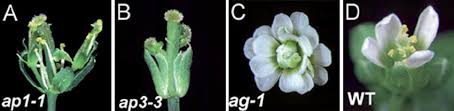
4.1 UniProt — protein function
UniProt is the central knowledgebase for protein information across all organisms: functional annotation, domains, sequence, structure, interactions and literature. Before looking at expression, UniProt is where you find out what a protein does.
Go to uniprot.org and search for APETALA3 or AT3G54340; pick the Arabidopsis thaliana entry.
- Q0.1 What is the annotated function of AP3? Check the associated GO terms.
- Q0.2 Which protein domains does it contain?
- Q0.3 In which subcellular compartment is the protein found?
- Q0.4 Does this fit its biological role as a regulator of flower development?
- Q0.1 DNA binding, protein binding, transcriptional activation; flower development (specification of petal and stamen identity).
- Q0.2 A MADS-box domain (DNA binding) and a K-box (protein–protein interaction).
- Q0.3 The nucleus.
- Q0.4 Yes — a nuclear, DNA-binding transcription factor is exactly what a regulator of flower development should be.
4.2 EBI Expression Atlas — bulk RNA-seq
The EBI Expression Atlas holds curated bulk RNA-seq datasets — both baseline experiments (in which tissues is a gene expressed?) and differential experiments (how does expression change between conditions?). It is a good starting point for tissue-level patterns. (You can also reach it from a gene’s UniProt page — and it is where the matrix of Sessions 2–3 came from.)
Go to ebi.ac.uk/gxa, search for AT3G54340 and look at its baseline expression across tissues.
- Q1 In which tissues is AP3 expressed most strongly?
- Q2 Which tissues show little or no expression?
- Discuss: why does this pattern make sense for a floral regulator?
- Q1 In the flower (flower and floral organs).
- Q2 Roots and leaves, among others.
- The gene is expressed where it acts — in flowers — and switched off elsewhere.
4.3 ePlant — bulk and tissue expression
ePlant (Bio-Analytic Resource, University of Toronto) integrates many layers of plant data, with a strong focus on Arabidopsis. It shows expression at the organ and tissue level and down to single cells, and is especially good for exploring a single gene visually.
Go to ePlant and search for AT3G54340.
- Click on Plant eFP viewer.
- Q3 Where is expression strongest?
- Go to Tissue and Experiment eFP viewers.
- Q4 Navigate to the shoot apex viewer. Where is AP3 most highly expressed?
- Go to the Navigator viewer and click on the plant icon for grape.
- Q5 Does AP3 from grape show the expected expression?
If ePlant is down: the Bio-Analytic Resource is a university server and is occasionally offline. Use the EBI Expression Atlas (§4.2) for organ-level expression instead and come back to ePlant later.
- Q3 In the flower — petals and stamens, exactly the two organs missing or transformed in the ap3 mutant.
- Q4 In the UFO sample.
- Q5 Yes — grape AP3 is also expressed in flowers, so its expression pattern is conserved across species.
4.4 A single-cell atlas of the leaf
Bulk RNA-seq (§4.2) tells you which organ a gene is expressed in — but a leaf is made of many cell types. Single-cell RNA-seq measures expression in thousands of individual cells; cells with similar profiles are grouped into clusters, and each cluster is labelled with the cell type it represents. That shows exactly which cells in a tissue use a gene.
We use the Plant Single Cell Browser (University of Tübingen) and its Arabidopsis leaf atlas (Kim et al. 2021, The Plant Cell), and three genes with very different jobs:
| Gene | AGI | Function | Expected where? |
|---|---|---|---|
| PsaK | AT1G30380 | photosystem I subunit (§3.3) | photosynthetic cells |
| SUC2 | AT1G22710 | sucrose transporter that loads sugar into the phloem | ? |
| CESA7 | AT5G17420 | secondary-wall cellulose synthase (Session 5) | ? |
- Go to the Plant Single Cell Browser and click Arabidopsis Leaf scRNA-seq — Kim et al. (2021).
- Study the Leaf Atlas Annotation picture on the left: every dot is one cell, and the numbered legend says which cell type each cluster (1–19) is.
- In Enter genes, replace the example genes with
AT1G30380, AT1G22710, AT5G17420and click Submit. - Feature Plot tab: one map per gene, with the cells coloured by expression (grey = none, red = high). Compare each map with the annotation picture.
- Q6 In which cell types is PsaK expressed? Where is it highest?
- Q7 In which cell type is SUC2 expressed? Does that fit its function?
- Q8 A message says
AT5G17420 - not found. Why might CESA7 be missing from a leaf single-cell atlas?
- Average Expression tab: the average expression of each gene in each cluster. ⚠ The table counts clusters from 0 (
c0–c18), the legend from 1 (1–19):c8in the table is cluster 9 in the legend.- Q9 Which cluster has the highest PsaK? Which cell type is it? Which cell types have the lowest PsaK?
- Discuss: what does this atlas tell you that the bulk Expression Atlas (§4.2) could not?
- Q6 PsaK lights up the whole mesophyll — the large group of clusters on the right — the photosynthetic cells of the leaf. It is much weaker in the vasculature, epidermis and guard cells.
- Q7 SUC2 is expressed only in companion cells (cluster 15,
c14in the table). That fits perfectly: companion cells sit next to the sieve elements and load the sucrose made in the mesophyll into the phloem, which carries it to the rest of the plant. - Q8 CESA7 makes cellulose for secondary cell walls, and those are built in developing xylem — cells that are rare in a mature leaf. Mature xylem vessels are dead, hollow tubes without RNA, and the thick, lignified walls resist being digested into single cells (protoplasts) for sequencing. The gene was too rarely detected to be kept in this dataset. The lesson: absent from a single-cell atlas is not the same as not expressed — always ask which tissue, stage and method the atlas used. (In the bulk atlas of Session 3, CESA7 is high in the stem.)
- Q9 The highest PsaK is in
c8= cluster 9, mesophyll (average ≈ 217); all mesophyll clusters have high values (≈ 25–217). The lowest are a phloem parenchyma/xylem cluster (c17= cluster 18, ≈ 4), guard cells (c15≈ 8), epidermis (c12≈ 8) and phloem parenchyma/procambium (c9≈ 9). Even these are not zero: partly because some of these cells do have chloroplasts, partly because PsaK mRNA is so abundant that it leaks from broken mesophyll cells into every sample (ambient RNA). - Discussion Bulk RNA-seq says “PsaK is a leaf gene”. The single-cell atlas says which leaf cells: mesophyll, not companion cells or epidermis — and that the mesophyll is not uniform, since PsaK differs about tenfold between mesophyll clusters. It also places SUC2 in one small cell type whose signal is diluted by all the other cells in a bulk leaf sample.
Session M4Ø5 — Co-expression network analysis in Cytoscape
Tuesday 27-10-2026 · week 44 · provisional
The week 44 exercises are provisional — this session may still change before Tuesday 27 October. Check this page again before class.
Today you go from raw transcriptomic data to a biological network that you can visualise and analyse in Cytoscape.
By the end of this session you will be able to:
- load and preprocess the Arabidopsis expression atlas;
- find the top 100 genes co-expressed with a seed gene — CESA7 (AT5G17420), a cellulose synthase of the secondary cell wall;
- build an all-vs-all co-expression network among these genes and export it;
- import it into Cytoscape, apply layouts, style nodes and edges, and explore clusters such as the secondary cell wall module.
Co-expression networks reveal groups of genes that work together in a biological process; combined with network analysis they generate hypotheses about gene function and regulation.
Install Cytoscape before class on your own computer: cytoscape.org/download.html (free; Windows, macOS and Linux). The R part runs on ERDA as before; you move the network file from ERDA to your computer in §5.3.
5.1 Setup: load and log-transform the atlas
This block (re)loads the atlas and the TAIR descriptions — both already in your module4 folder from Session 3 — and labels every gene AGI_name (e.g. AT5G17420_CESA7; _nan means the gene has no short name). This time we keep all 56 samples and log-transform the values.
setwd("~/work/module4")
options(timeout = 600)

atlas <- "https://ftp.ebi.ac.uk/pub/databases/microarray/data/atlas/experiments/E-MTAB-7978/"
if (!file.exists("E-MTAB-7978-transcripts-tpms.tsv"))
  download.file(paste0(atlas, "E-MTAB-7978-transcripts-tpms.tsv"), "E-MTAB-7978-transcripts-tpms.tsv")
if (!file.exists("TAIR10_functional_descriptions.txt"))
  download.file("https://www.arabidopsis.org/api/download-files/download?filePath=Genes/TAIR10_genome_release/TAIR10_functional_descriptions",
                "TAIR10_functional_descriptions.txt")

# TAIR descriptions, one per gene
tair <- read.delim("TAIR10_functional_descriptions.txt", quote = "", colClasses = "character")
tair$gene <- sub("\\.[0-9]+$", "", tair$Model_name)
tair <- tair[!duplicated(tair$gene), c("gene", "Short_description")]

# The TPM table, primary transcripts only
tpm <- read.delim("E-MTAB-7978-transcripts-tpms.tsv", check.names = FALSE)
tpm <- tpm[endsWith(tpm$GeneID, ".1"), ]

# Gene labels AGI_name, and a lookup table AGI -> label (used again in the mini-project)
gene_name <- tpm[["Gene Name"]]
gene_name[is.na(gene_name) | gene_name == ""] <- "nan"
gene_label <- paste(tpm[["Gene ID"]], gene_name, sep = "_")
agi2label <- setNames(gene_label, toupper(tpm[["Gene ID"]]))

# Expression matrix (56 samples), log2(TPM + 1), with the labels as row names
expr <- as.matrix(tpm[, grep("^ERR", colnames(tpm))])
expr[is.na(expr)] <- 0
rownames(expr) <- gene_label
expr_log <- log2(expr + 1)

# The description of every gene, looked up by label
description <- setNames(tair$Short_description[match(tpm[["Gene ID"]], tair$gene)], gene_label)

dim(expr_log)
5.2 The top 100 genes co-expressed with CESA7
The same calculation as in Session 3 (§3.3), now with CESA7 as the query:
target_gene <- "AT5G17420"            # your gene of interest; here CESA7
target_label <- agi2label[target_gene]

# PCC of every gene with the target
pcc <- suppressWarnings(cor(t(expr_log), expr_log[target_label, ]))[, 1]

result <- data.frame(gene = names(pcc), description = description[names(pcc)],
                     PCC = round(pcc, 6), row.names = NULL)
result <- head(result[order(result$PCC, decreasing = TRUE), ], 100)
print(result, row.names = FALSE)
Your turn: what do you see in this list? Are the PCC values high, and is there an expected pattern? Do all genes have known functions?
The PCC values are high — from 1 (CESA7 itself) down to about 0.77 for gene 100. And the pattern is exactly the secondary cell wall: the two other secondary-wall cellulose synthases CESA8 and CESA4 are in the top 5, together with the IRREGULAR XYLEM genes (IRX9, IRX10, IRX12, IRX14, IRX15), xylan-synthesis genes (GUX1, GXM1, GAUT12), lignin laccases (LAC2, LAC11, LAC17), the chitinase-like CTL2, FASCICLIN-like arabinogalactan proteins (FLA11, FLA12) — and the transcription factors that control the whole programme: MYB46, MYB83, MYB103, MYB43, MYB52, MYB85 and the NAC factors NAC012 (= SND1) and NAC073 (= SND2).
Not all are known: 36 of the 100 genes have no short name (_nan), and several are described only as Protein of unknown function (DUFxxx). Their co-expression with the cellulose machinery makes them candidates for new secondary-wall genes.
5.3 Your very first co-expression network
Now take these 100 genes and build a co-expression network: compute the PCC between every pair of genes and keep only the pairs (edges) with PCC > 0.9.
top_genes <- result$gene

# PCC between every pair of the 100 genes: a 100 x 100 matrix
C <- cor(t(expr_log[top_genes, ]))

# Edge list: every pair with PCC > 0.9. upper.tri() takes each pair once and skips
# the diagonal (a gene with itself).
pairs <- which(C > 0.9 & upper.tri(C), arr.ind = TRUE)
edges <- data.frame(gene_A = rownames(C)[pairs[, 1]],
                    gene_B = colnames(C)[pairs[, 2]],
                    PCC    = round(C[pairs], 6))
edges <- edges[order(edges$PCC, decreasing = TRUE), ]

# Save it
out_file <- paste0("for_cytoscape_", target_gene, ".tsv")
write.table(edges, out_file, sep = "\t", quote = FALSE, row.names = FALSE)
cat("Saved", nrow(edges), "edges (PCC > 0.9) among", length(top_genes), "genes to", out_file, "\n")
You should get 195 edges. Copy the file to your own computer: in RStudio’s Files pane, go to ~/work/module4, tick for_cytoscape_AT5G17420.tsv, then click the gear icon (More) → Export… → Download.
5.4 Visualise the network in Cytoscape
- Open the downloaded
for_cytoscape_AT5G17420.tsvin a text editor first. What is in the file, and is it human-readable? - Start Cytoscape and import the network: File → Import → Network from File…, choose the file and click OK. Cytoscape guesses that
gene_Ais the source node,gene_Bthe target node andPCCan edge attribute.
The network is drawn immediately:
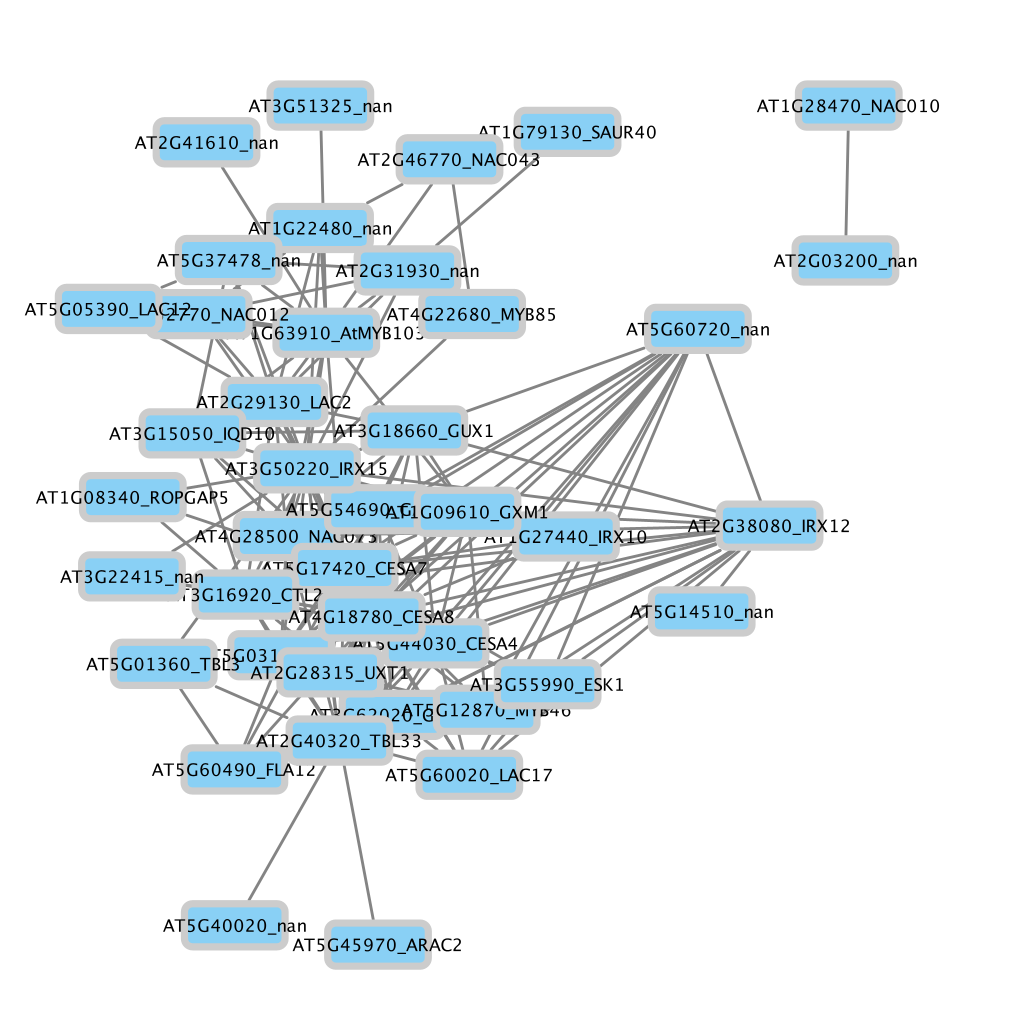
A plain-text, tab-separated table with a header line and one edge per line: the two genes (gene_A, gene_B) and the PCC between them. It is perfectly human-readable — a network is just a list of who is connected to whom. Only 57 of the 100 genes appear: the others have no partner above PCC 0.9.
5.5 Annotate the network
Cytoscape makes it easy to change how the network looks. Start by colouring the most important gene families:
- CESAs (example below);
- MYB transcription factors;
- NAC transcription factors.
- Select the nodes of one family with the search box at the top right, e.g.
name:*cesa*(thenname:*myb*,name:*nac*). - Colour the selected nodes’ labels with Style → Label Color → Bypass, choosing a colour that is easy to read.
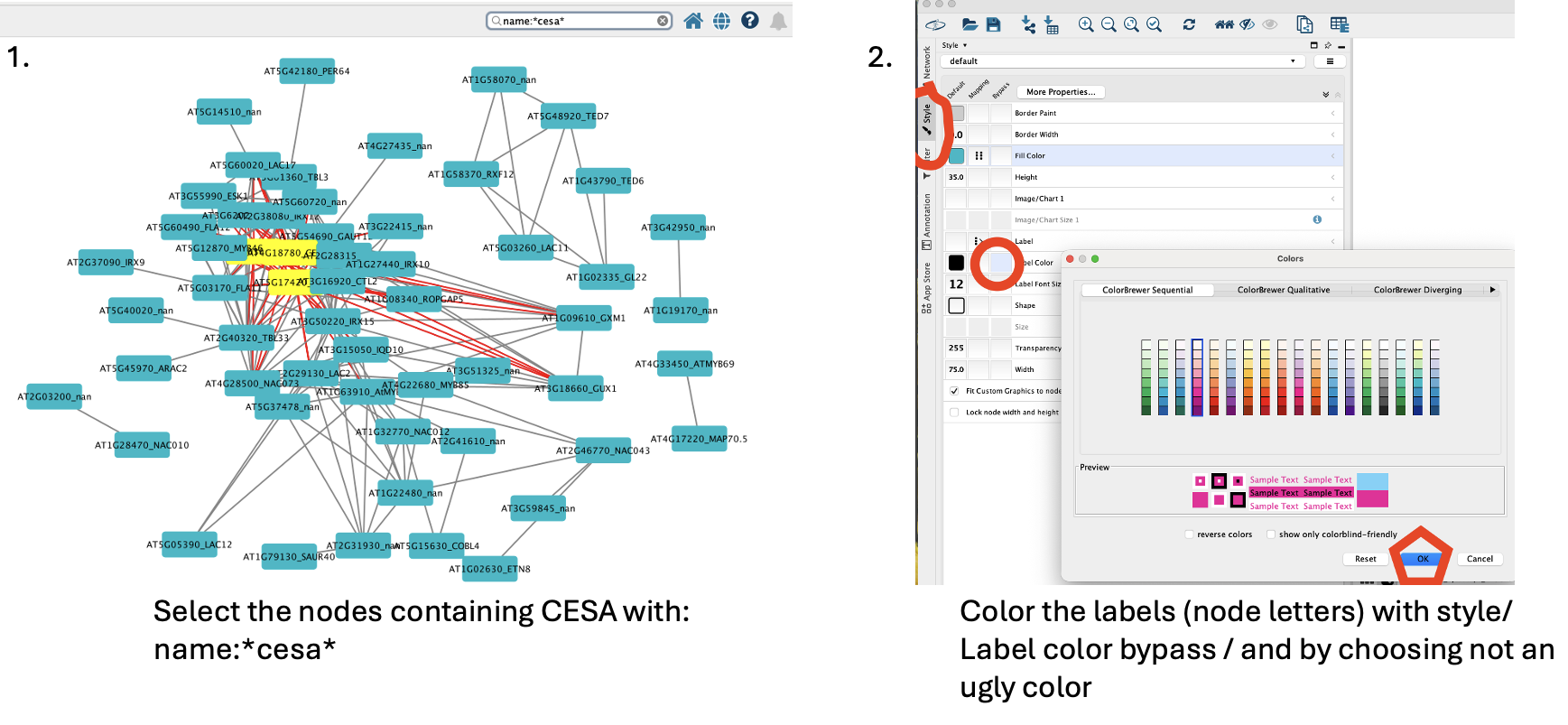
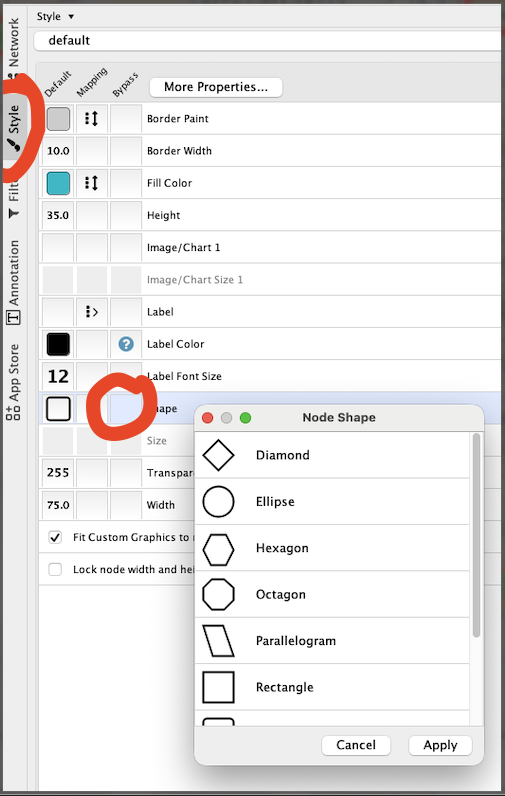
Your turn: is it easy to tell the four categories (CESA, MYB, NAC, all others) apart? If not, change the colours so they are easy to distinguish but still pleasant to look at — for inspiration see the ColorBrewer palettes. Make the categories even easier to tell apart by giving each one a different shape: repeat the selection and set a shape bypass for each category.
5.6 Change the layout
Cytoscape’s layout algorithms decide how the network is arranged on screen. Each one emphasises different structure — clusters, hubs or linear relationships.
Try at least three layouts from the Layout menu:
- force-directed (e.g. Prefuse Force Directed or Edge-weighted Spring Embedded);
- hierarchical (Hierarchical Layout);
- circular (Circular Layout).
Adjust spacing and node size where needed to improve readability.
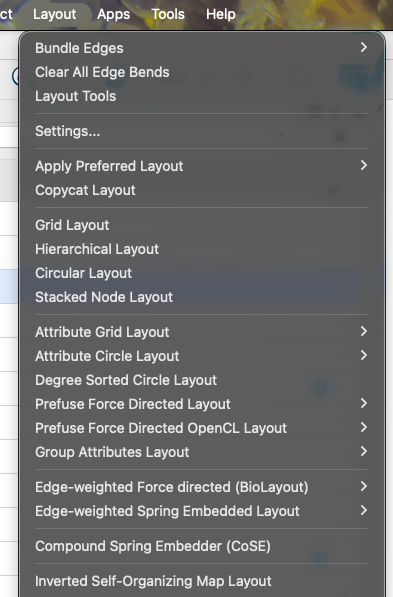
Your turn:
- Which layout separates the functional groups best?
- Which one makes hub genes or key regulators easiest to find?
- If you had to prepare a figure for publication, which layout would you choose, and what would you change (spacing, edge thickness, colours)?
Tip: you can also drag nodes by hand to make the network more readable. Honestly, nearly every network figure Marek has published needed manual adjustment — the layout algorithms are just not good enough (yet)!
There is no single right answer. A force-directed layout usually works best for co-expression networks: tightly connected genes are pulled together, so modules appear as dense clumps and the hubs sit in their centre. The circular layout shows every node clearly but hides the structure; the hierarchical layout suits directed networks (regulator → target) better than an undirected co-expression network.
5.7 Network analysis
Cytoscape’s Analyzer (Tools → Analyze Network) computes key topological properties of the network:
- degree — number of edges of a node (hubs have a high degree);
- betweenness centrality — how often a node lies on the shortest path between other nodes, i.e. connects different parts of the network;
- clustering coefficient — how tightly a node’s neighbours are connected to each other;
- network density / diameter — the overall connectivity of the network.
These measures help pinpoint important genes, such as the transcription factors that coordinate secondary cell wall biosynthesis. The network is tiny, so the analysis takes a fraction of a second; the results are added as new columns to the Node Table. Analyse it as an undirected network (co-expression has no direction).
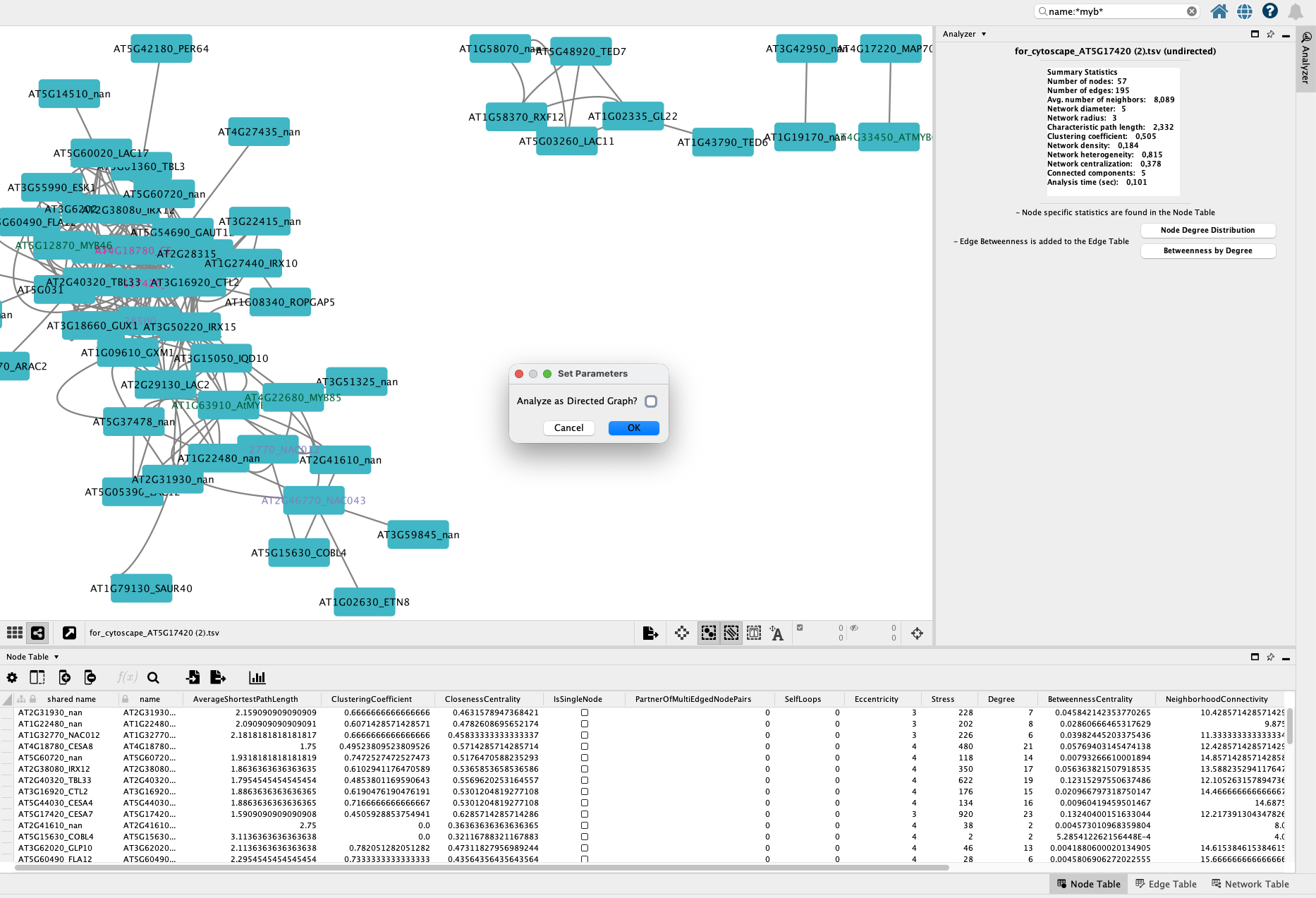
- Colour the nodes by degree: Style → Fill Color → Column: Degree, Mapping Type: Continuous Mapping.
- Under Border Paint, map the column ClusteringCoefficient, also with a continuous mapping and a contrasting gradient. Increase Border Width (e.g. 5 px) so the outline is visible.
- Adjust the legend or layout for clarity.
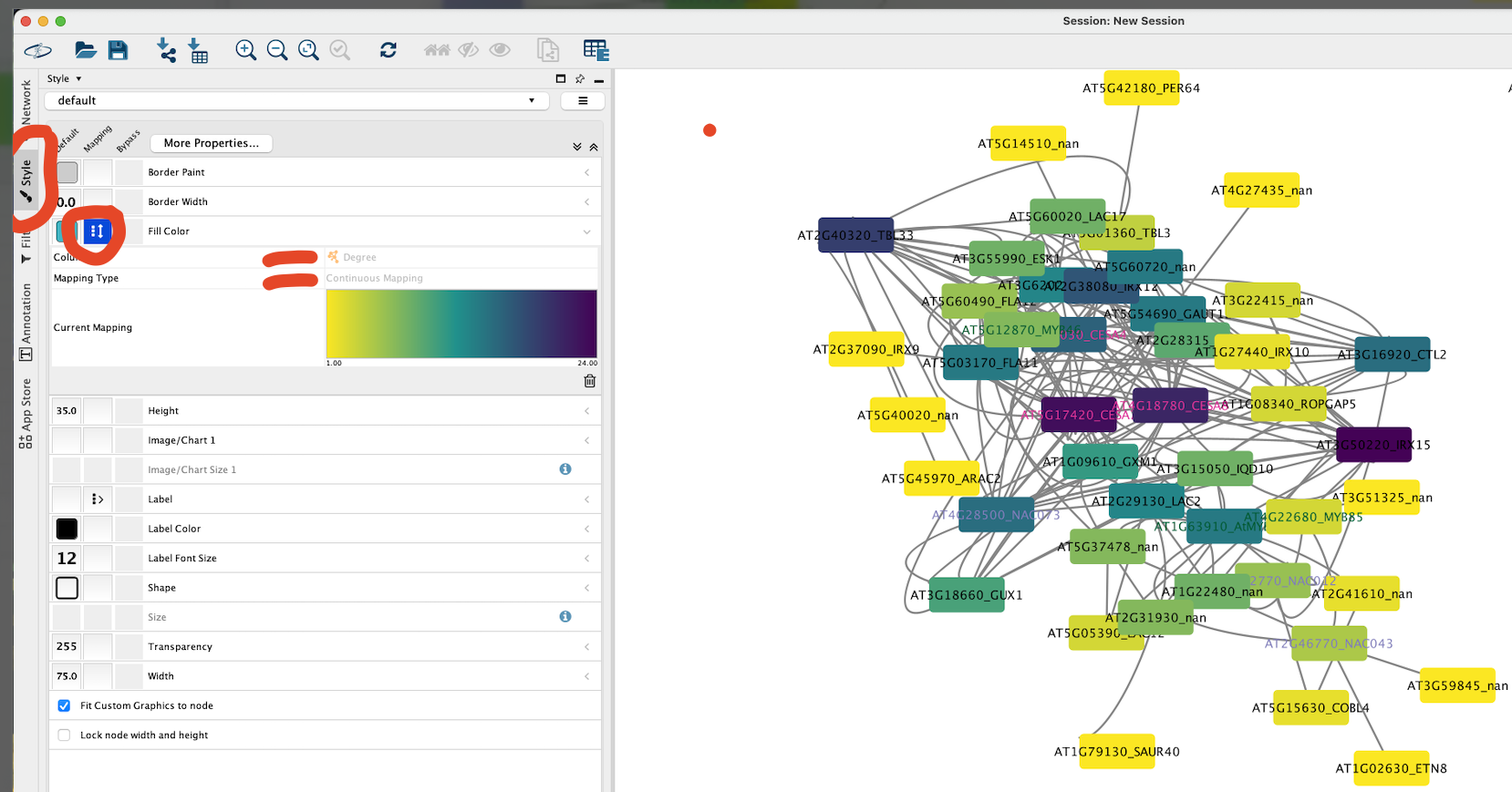
Your turn: is it easy to see node labels, degree and clustering coefficient at the same time? Run the Prefuse Force Directed layout: where do the high-degree nodes sit — on the periphery or buried in the middle?
The high-degree nodes sit in the middle of the network, buried among their many neighbours; low-degree genes hang on the periphery. The top hubs are the core of the cellulose machinery itself: IRX15 (degree 24), CESA7 (23), CESA8 (21), TBL33, IRX12, CESA4, CTL2 and the transcription factor NAC073/SND2 (15 each).
Mini-project — a multi-omic network of the secondary cell wall
Thursday 29-10-2026 · week 44 · provisional
The week 44 exercises are provisional — the mini-project may still change before Thursday 29 October. Check this page again before class.
Let’s wrap the module up with a project. You will build a multi-omic network of secondary cell wall biosynthesis in Arabidopsis by combining two kinds of evidence:
| Layer | Evidence | Source | Built in |
|---|---|---|---|
| co-expression | the genes’ mRNA levels rise and fall together | expression atlas | Session 5 ✔ |
| protein–protein interaction (PPI) | the proteins physically bind each other | BioGRID | §6.2 |
Each group then picks a gene from the network, characterises it, and presents it in a 5-minute talk in the afternoon.
6.1 Pick your gene
Choose one gene from the CESA7 co-expression network (Session 5) — ideally one your group finds interesting: a transcription factor, a hub, or an unnamed (_nan) gene. Tell Marek which one, so that groups do not all pick the same gene. Everything below is done for CESA7’s network; you then zoom in on your gene in §6.4–6.6.
6.2 Protein–protein interactions from BioGRID
BioGRID collects experimentally determined protein–protein interactions for all organisms. We extract every interaction between two of the top 100 CESA7-co-expressed genes.
If you have had a break since Session 5, first rerun §5.1 (setup) and §5.2 (top 100 genes) — this block needs result and agi2label. The BioGRID download is 69 MB.
setwd("~/work/module4")
options(timeout = 600)

# Download BioGRID once, and unpack only the Arabidopsis file
biogrid_zip <- "BIOGRID-ORGANISM-5.0.250.tab.zip"
if (!file.exists(biogrid_zip))
  download.file("https://downloads.thebiogrid.org/Download/BioGRID/Release-Archive/BIOGRID-5.0.250/BIOGRID-ORGANISM-5.0.250.tab.zip",
                biogrid_zip, mode = "wb")
ppi_file <- "BIOGRID-ORGANISM-Arabidopsis_thaliana_Columbia-5.0.250.tab.txt"
unzip(biogrid_zip, files = ppi_file)

# The file starts with licence text; find the line where the table begins
skip <- grep("^INTERACTOR_A", readLines(ppi_file, n = 200))[1] - 1
biogrid <- read.delim(ppi_file, skip = skip, quote = "", colClasses = "character")

# Keep interactions where BOTH proteins are among the top 100 co-expressed genes
top_agi <- toupper(sub("_.*", "", result$gene))
hits <- biogrid[toupper(biogrid$INTERACTOR_A) %in% top_agi &
                toupper(biogrid$INTERACTOR_B) %in% top_agi, ]

# Label the proteins as in the co-expression network, and keep the experiment type
ppi <- unique(data.frame(gene_A     = agi2label[toupper(hits$INTERACTOR_A)],
                         gene_B     = agi2label[toupper(hits$INTERACTOR_B)],
                         experiment = hits$EXPERIMENTAL_SYSTEM, row.names = NULL))

write.table(ppi, "PPI.txt", sep = "\t", quote = FALSE, row.names = FALSE)
cat(nrow(ppi), "protein-protein interactions\n")
print(ppi, row.names = FALSE)
Your turn: which proteins interact? Which kinds of experiment support the interactions?
There are 24 interactions, and nearly all are among CESA4, CESA7 and CESA8 — with each other and with themselves. That is the cellulose synthase complex: the three secondary-wall CESAs assemble together, so the PPI layer confirms what co-expression suggested. The other notable partner is TED6 (AT1G43790), a known CESA7-binding protein needed for xylem development. The evidence comes from yeast two-hybrid, affinity capture (Western), co-purification and PCA (here: protein-fragment complementation assay, not principal component analysis!).
6.3 Combine the two layers into one network
Both files label genes the same way (AGI_name), so they can be stacked into one edge table with a column edge_type that says which layer each edge comes from.
setwd("~/work/module4")

# Layer 1: co-expression (Session 5)
coexp <- read.delim(paste0("for_cytoscape_", target_gene, ".tsv"))
coexp <- data.frame(source = coexp$gene_A, target = coexp$gene_B,
                    edge_type = "coexpression", evidence = as.character(round(coexp$PCC, 3)))

# Layer 2: protein-protein interactions (§6.2)
ppi_edges <- read.delim("PPI.txt")
ppi_edges <- data.frame(source = ppi_edges$gene_A, target = ppi_edges$gene_B,
                        edge_type = "PPI", evidence = ppi_edges$experiment)

network <- rbind(coexp, ppi_edges)
write.table(network, paste0("multiomics_network_", target_gene, ".tsv"),
            sep = "\t", quote = FALSE, row.names = FALSE)
table(network$edge_type)
Download multiomics_network_AT5G17420.tsv to your computer as in §5.3.
6.4 Style and analyse the multi-omic network
- Import the file as in §5.4 (File → Import → Network from File…). In the import preview, click the
edge_typecolumn header and set it as the Interaction Type (the icon with an arrow between two dots). - Nodes:
- transcription factors — select MYB and NAC (
name:*myb*,name:*nac*) and give them their own shape; - CESAs — another shape;
- run Tools → Analyze Network again, colour nodes by Degree and node borders by ClusteringCoefficient (§5.7).
- transcription factors — select MYB and NAC (
- Edges: Style → Edge → Stroke Color (and Line Type) → map the column
edge_typewith a Discrete Mapping: one style for co-expression, another for PPI. Where both kinds of edge connect the same two genes, you now have two independent lines of evidence. - Arrange the network so that the different node and edge categories are easy to see.
- Zoom in on your gene: select it, then Select → Nodes → First Neighbors of Selected Nodes — twice, to get the neighbours of the neighbours — and File → New Network → From Selected Nodes, All Edges. Use a bypass to highlight your gene.
Your turn — in the second-neighbourhood network of your gene, describe:
- Which transcription factors (MYB, NAC …) are connected to your gene? They are candidate regulators — co-expression alone does not prove they control it.
- What are the functions of some of the unnamed (
_nan) genes? - Does your protein interact with other proteins?
- Do you find anything new and unexpected?
6.5 Additional evidence from online network databases
There are now many online databases that show expression profiles, co-expression and other networks for your gene. Use them to support (or challenge) your network.
- ePlant (bar.utoronto.ca/eplant). Sort the Degree column of the Node Table in Cytoscape and take the top 5 genes (e.g. AT5G44030).
- Look them up in the Gene Info viewer. Do their functions correspond to secondary cell wall development?
- Go to the Plant eFP viewer. Where are the five genes expressed? Are their expression profiles similar?
- STRING (string-db.org) — one of the oldest and still most popular network databases. It combines co-expression, protein–protein interactions, text mining and genomic information.
- Search for AT5G17420 (CESA7). Under Viewers, open the Experiments panel. Are there associations reported between CESA7 and other genes? From which kinds of experiments?
- What kinds of information do the other Viewers panels show? Some panels are not clickable — why?
- Click the edge connecting CESA4 and CESA7. Which evidence underpins it?
- PlantConnectome (plant.connectome.tools), developed in Marek’s lab: a large language model read more than 70,000 papers and extracted relationships between genes, metabolites, cell types and other entities.
- Search for AT5G17420. In the list of matching entities, tick the entries for CESA7 (also called IRX3) and click Show Selected. Which relationships are reported, and which kinds of entities is CESA7 connected to? Do they agree with your network?
- The top-degree genes (CESA7, CESA8, CESA4, IRX12, IRX15 …) are all secondary-wall genes, and in the eFP viewer they share the same profile: highest in the stem (and other tissues with xylem), low in leaves and flowers.
- Yes — CESA7 has experimentally supported associations with CESA4 and CESA8 (co-immunoprecipitation and two-hybrid, as in BioGRID).
- The panels show other evidence types: gene neighbourhood, gene fusion, co-occurrence across genomes, co-expression, curated databases and text mining. Panels for evidence types that do not apply to CESA7 (e.g. gene fusion or neighbourhood, which are mostly informative for prokaryotes) have no data and are greyed out.
- Several independent evidence types at once — typically experiments (the CESA complex studies), curated databases, co-expression and text mining. An edge supported by many evidence types is far more trustworthy than one supported by text mining alone.
- Look for the other CESAs, the transcription factors from your network (MYB46, SND1/NAC012 …) and processes or phenotypes such as secondary cell wall formation, cellulose biosynthesis and irregular xylem. Every edge links to the paper it was extracted from: where PlantConnectome agrees with your network you have literature support; where it differs, read the source sentence — the AI can be wrong too.
6.6 The expression profile of your gene
Go to ePlant and enter the AGI code of your gene.
- In the eFP viewer: in which organs and tissues is your gene expressed?
- The same for abiotic stress — does any stress change its expression?
- And for cell types in the root.
6.7 The presentation
Each group gives a 5-minute presentation of its gene, followed by peer review in the afternoon. Cover:
- the function of your gene (what is known — UniProt, TAIR, PlantConnectome);
- the multi-omic network you generated, with your gene highlighted;
- which transcription factors are connected to your gene (candidate regulators);
- the functions of some of the unnamed (
_nan) genes in its neighbourhood; - whether your protein interacts with other proteins;
- anything new or unexpected;
- the organ, tissue, cell-type and abiotic-stress expression profile of your gene.
Appendix — Connecting to RStudio on ERDA
Everything in this module runs in RStudio on ERDA — the same setup as in the course Big Data in Biotechnology, so if you took that course you can skip to step 2 and use the image you already know. This is how you get there. Do the sign-up before the first class — it is not instant.
1. Get an ERDA account
ERDA is the University of Copenhagen’s Electronic Research Data Archive. Go to erda.dk and choose “Sign up to ERDA using your KU / UCPH account”, then log in with your usual KU credentials. ERDA supports two-factor authentication, so have your phone to hand.
You only need a web browser. Nothing is installed on your own machine.
2. Start an RStudio session
Once you are logged in to ERDA:
- On the ERDA home page, click the Jupyter app (also in the left icon bar).
- Under Select a Jupyter Service, stay on the DAG tab (Data Analysis Gateway — the interactive service; MODI is for batch HPC jobs) and press Start DAG.
- You land on JupyterHub. Press Start My Server.
- Under Server Options → Select a notebook image, choose Big Data in Biotechnology Notebook — the course image with RStudio and R set up. Do not take the default Python notebook. (This module uses base R only, so nothing else needs installing.)
- When the launcher opens, click RStudio (under Notebook). The same launcher also offers a Terminal under Other.
You now have RStudio running in your browser on a KU machine. Worth knowing about DAG sessions: you get 8 cores and 16 GB of memory, a session is terminated after 2 hours of inactivity, and the machine itself is non-persistent — see the next point.
3. The module4 folder — and why only ~/work is safe
Your ERDA files appear inside every session at ~/work (in full: /home/jovyan/work/). Everything in this module lives in one folder inside it, ~/work/module4, which you make in Session 1. Every code block on this page reads and writes there.
Only ~/work survives. In ERDA’s own words, spawned instances are non-persistent: any change made during a session is lost once the server is terminated — the only exception is data saved in the provided mount directory (~/work). And sessions do terminate: after 2 hours of inactivity, automatically. Save everything under ~/work/module4 and it is there next session — but R’s variables are not, so rerun the session’s setup block.
4. The files
You do not upload any data: every dataset is downloaded straight into ~/work/module4 by the code — you never upload anything. When the module is done, the folder looks like this:
~/work/module4/
    bin/kallisto                            the installed program (Session 1)
    TAIR10_cds.fa  TAIR10_index.idx         reference sequences + kallisto index (Session 1)
    reads/                                  raw reads, 180 MB — delete after Session 1
    results/                                kallisto output (Session 1)
    E-MTAB-7978-transcripts-tpms.tsv        the expression atlas (Sessions 2-6)
    E-MTAB-7978.sdrf.txt                    its sample annotation (Sessions 2-3)
    TAIR10_functional_descriptions.txt      gene descriptions (Sessions 3-6)
    for_cytoscape_AT5G17420.tsv             co-expression network (Session 5)
    BIOGRID-ORGANISM-5.0.250.tab.zip        BioGRID, and the Arabidopsis file from it (mini-project)
    PPI.txt                                 protein-protein interactions (mini-project)
    multiomics_network_AT5G17420.tsv        the combined network (mini-project)
Moving files to your own computer (for Cytoscape): RStudio Files pane → tick the file → gear icon (More) → Export…. Moving files to ERDA: Files pane → Upload. You can also use the ERDA file manager in the browser.
5. Console or Terminal?
| You want to … | Use | How to recognise it on this page |
|---|---|---|
| run R code | Console tab (or a script) | plain code block |
run kallisto, curl, ls, cat … |
Terminal tab, right of Console | block in a TERMINAL box |
Pasting shell commands into the R console (or R code into the Terminal) gives errors such as Error: unexpected symbol or command not found.
Allowed, but you take on the setup yourself. Install R and RStudio; no R packages are needed. kallisto needs the binary for your operating system from the kallisto releases — the Linux build used above will not run on macOS or Windows. Replace ~/work/module4 by a folder of your choosing. The teachers can only reliably help with the ERDA setup.
Troubleshooting
| Symptom | What to do |
|---|---|
| Session will not start, or times out | Wait and try again; a stuck session usually clears. Sessions end after 2 h of inactivity. |
| No RStudio button in the launcher | You started the wrong notebook image. Stop the server (JupyterHub → Home → Stop My Server) and start it again with Big Data in Biotechnology Notebook. |
Error: object '…' not found |
A variable from an earlier block does not exist (session ended, or a block was skipped). Rerun the session’s setup block, then the blocks above the one that failed. |
cannot open file '…': No such file or directory |
You are not in the module folder, or the file was never made. Run setwd("~/work/module4") and check the Files pane. |
download.file stops with a timeout |
Run options(timeout = 600) and try again; the TAIR server is sometimes slow. |
subscript out of bounds after setting target_gene |
The gene ID is not in the matrix — check the AGI code (e.g. AT5G17420, capital letters). |
The read check reports 0 reads |
The server was busy. Wait a minute and run that file’s curl line again (§1.7). |
./bin/kallisto: No such file or directory |
You are not in ~/work/module4 (run cd ~/work/module4), or kallisto is not installed yet (§1.3). |
Error: unexpected symbol / command not found |
R code in the Terminal, or shell code in the Console — see the table above. |
| Work disappeared after a session ended | Only ~/work persists. Anything saved elsewhere was on the temporary machine. |
If ERDA itself is broken rather than your code, mail support@erda.dk — they usually reply within one working day.
This appendix follows the course’s R Studio on ERDA guide and the official ERDA documentation. ERDA’s interface changes occasionally — if a button has moved, Absalon and the teachers are the authority, not this page.
Where to go next
- Explore other genes. Change
target_genein §3.3 or §5.2 to any Arabidopsis gene and see what it is co-expressed with. - Other organisms. The EBI Expression Atlas holds processed RNA-seq for hundreds of species — the same code works on any of its TPM matrices.
- Cytoscape tutorials: tutorials.cytoscape.org.
- More R: R for Data Science.